
How to Choose Wireless Screen Sharing for Meeting Rooms
Choose wireless screen sharing that is simple, secure, compatible, and reliable for meeting rooms, with practical advice on workflow, performance, and AV integration.
News Detail
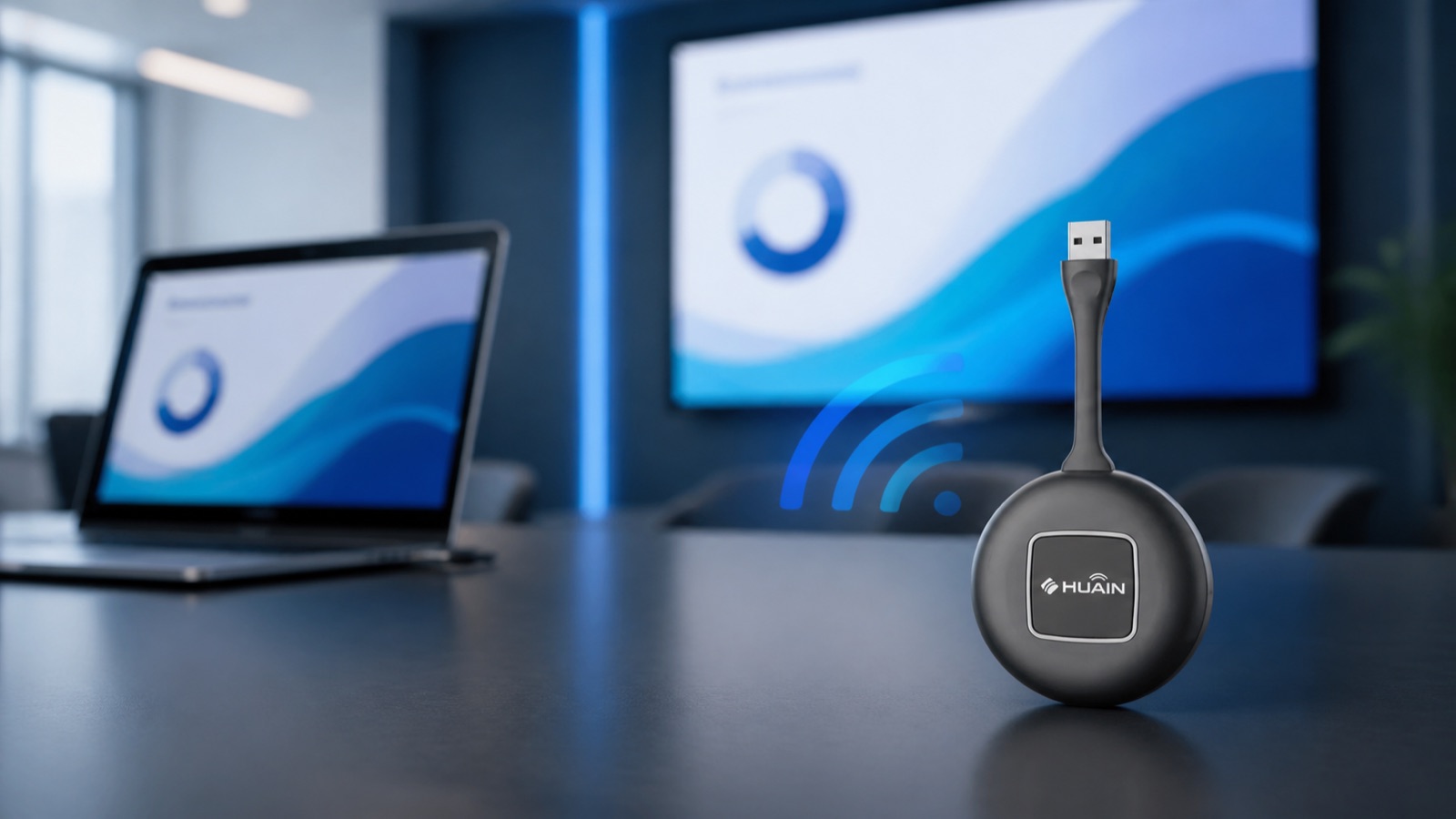
<p>How to Choose Wireless Screen Sharing for Meeting Rooms</p><p><br></p><p>Wireless screen sharing reduces cable changes and makes it faster to hand presentation control from one participant to another. It is especially useful in BYOD meeting rooms, but a good experience depends on more than removing the HDMI cable. Compatibility, security, image quality, and workflow must be designed together.</p><p><br></p><p>1. Support user devices</p><p>Identify how often presenters use Windows, macOS, tablets, and smartphones. Some platforms require an application, some use operating-system protocols, and others use a plug-and-play USB presentation button. The best method should align with IT policy and the technical confidence of regular users and guests.</p><p><br></p><p>2. Receiver and transmitter architecture</p><p>A typical system connects a receiver to the display or AV switcher and uses a transmitter or application to send content. In rooms with frequent visitors, a one-button transmitter can reduce software installation. Confirm the ports available on modern laptops and provide approved adapters where necessary.</p><p><br></p><p>3. Resolution, frame rate, and latency</p><p>Presentation slides must keep small text and spreadsheets readable, while video requires stable frame rate and synchronized audio. Test the system at the display’s real resolution with motion, sound, and representative content. Small latency may be acceptable for slides but becomes noticeable during video playback or interactive demonstrations.</p><p><br></p><p>4. Network and security</p><p>Determine whether the solution creates its own wireless connection or uses the corporate network, which ports are required, and whether guest traffic can be separated. Confidential rooms may require encryption, secure device pairing, room codes, and moderator approval before content appears on the main display.</p><p><br></p><p>5. Keep the workflow simple</p><p>A presenter should understand the process immediately: connect, wait for confirmation, and press once to share. Display clear on-screen instructions while the room is idle, and define how to stop sharing and transfer control. A consistent workflow reduces training and support calls.</p><p><br></p><p>6. Multiple presenters</p><p>Some meetings require rapid switching or simultaneous display of several sources. Confirm the supported number of connected users, the number of sources shown at once, and moderator controls. If touchback or control from an interactive display is required, verify compatibility with the exact product model and operating system before purchase.</p><p><br></p><p>7. Integrate with the AV system</p><p>Wireless sharing should work with interactive displays, matrix switchers, video conferencing, professional audio, and room control. Verify HDMI, USB, HDCP, audio formats, output resolution, and EDID behavior when the signal passes through several devices.</p><p><br></p><p>HUAIN example</p><p>HY-Y100 serves as a receiver for a wireless presentation system, while HY-TX800 is a plug-and-play USB transmitter for Windows and macOS. Users can connect the device and press the button to begin presenting quickly, making it suitable for rooms where a short, repeatable workflow is the priority.</p><p><br></p><p>Conclusion</p><p>The best wireless presentation system lets users start without assistance, maintains stable audio and video, and stays within the organization’s security policy. Always test with the actual laptops, display, network, and AV equipment before rolling the design out to multiple rooms.</p>